

Lesson 1,
Topic 1
In Progress
Activity: Tobi Graphics
In Tobi’s school they planned to conduct a coding competition. Tobi decided to participate in the event and create magic by changing it color, squeezing him, and also creating multiples of him. He decided to create this magic activity in the PictoBlox by using the blocks from Looks palette. Let us help Tobi to complete the project successfully.
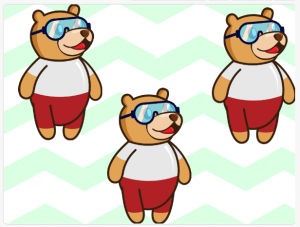
Step-by-step Procedure
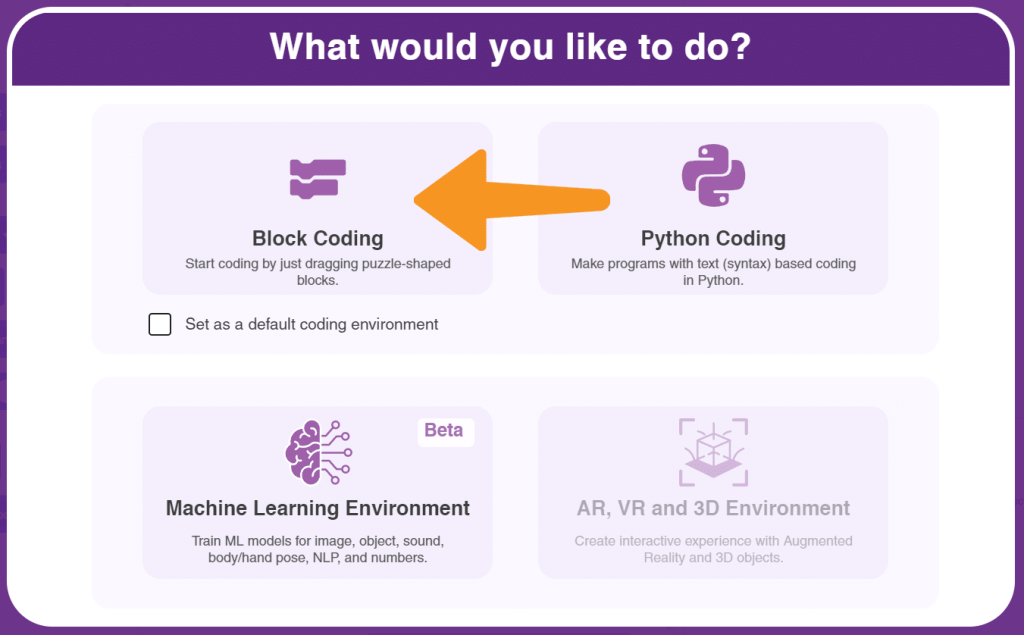
- Open a new file in the PictoBlox and select the coding environment as Block coding as shown.
- We are going to add the Graphical Effects to the Tobi. Firstly, we need to add the backdrop,
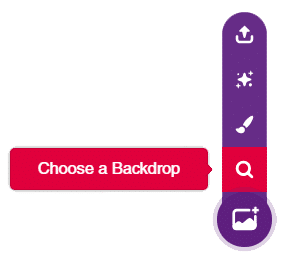
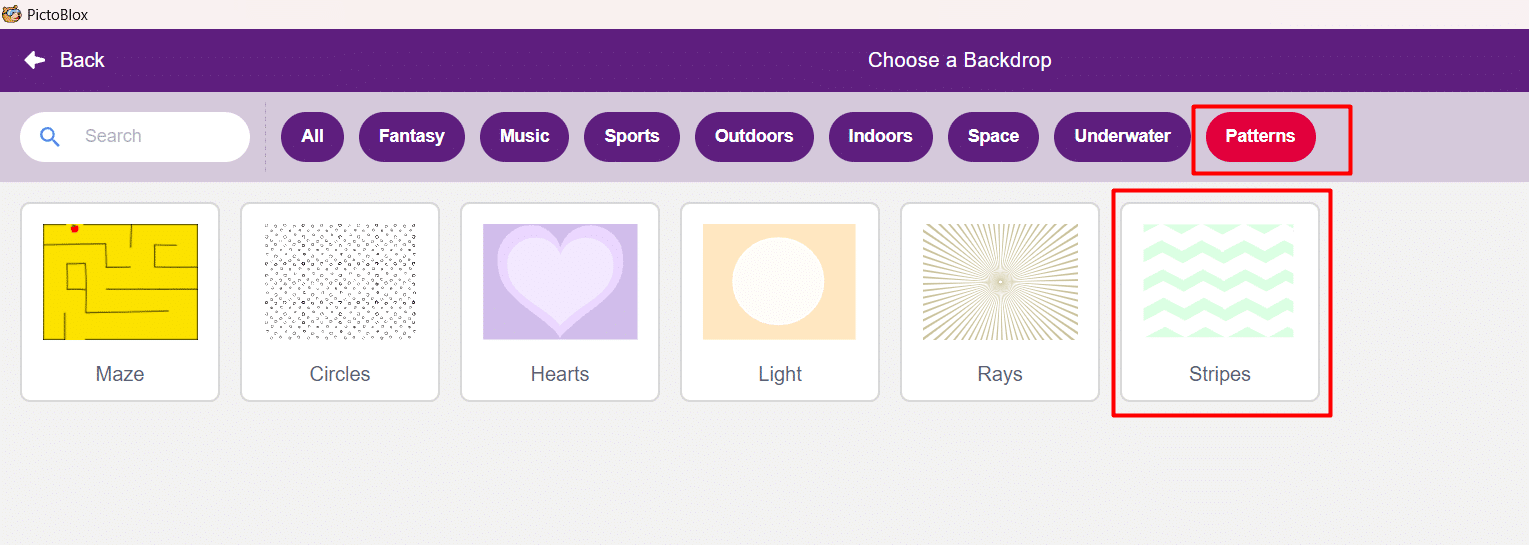
- We will now, click on the Choose a backdrop option and select the patterns option and select the backdrop Stripes as shown.
- We already have our Tobi sprite in the stage. So, let us increase the size of the ‘Tobi’ by changing its size in the sprite panel to 200 as show below.
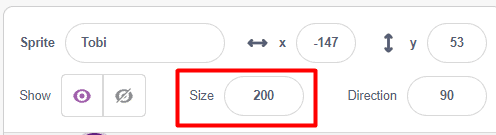
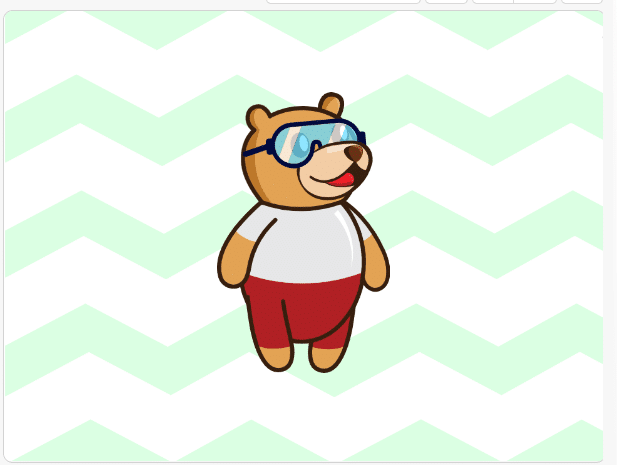
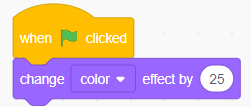
- Let us start doing the code for our ‘Tobi’ Click on the ‘Tobi’ from the sprite panel and Open the Looks palette, drag and drop the change () effect by () block to the script area. Don’t forget to add the when flag clicked block at the top of it.
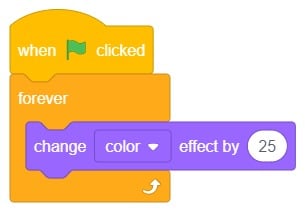
- Let us change the color of the ‘Tobi’ sprite continuously until the red stop button is pressed. Yes, we can do it by adding the forever block from the Control palette as shown.
- Click on the Green flag and check the code for color changing
- Let us create the different effect for the Tobi by duplicating the Tobi
- Select the Tobi from the sprite panel and right click on the Tobi and click on the duplicate Similarly duplicate one more Tobi sprite.
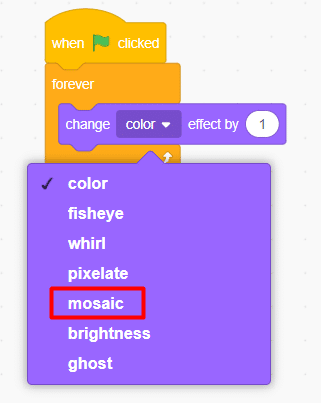
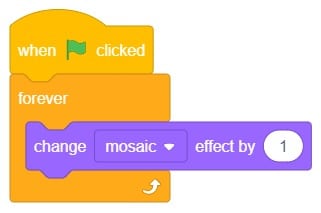
- Click on the Tobi2 sprite on the sprite panel and change (color) effect by () to the mosaic effect by clicking on the inverted triangle and also change the value from ‘25’ to ‘1’as shown below.
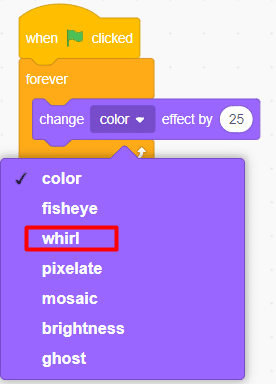
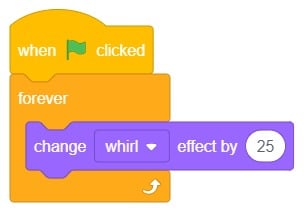
- Click on the Tobi3 sprite on the sprite panel and change (Color) effect by () to the whirl effect by clicking on the ‘inverted triangle’ and change the value from ‘25’ to ‘1’as shown.
- Time to run and check the code. Click on the green flag.
Output
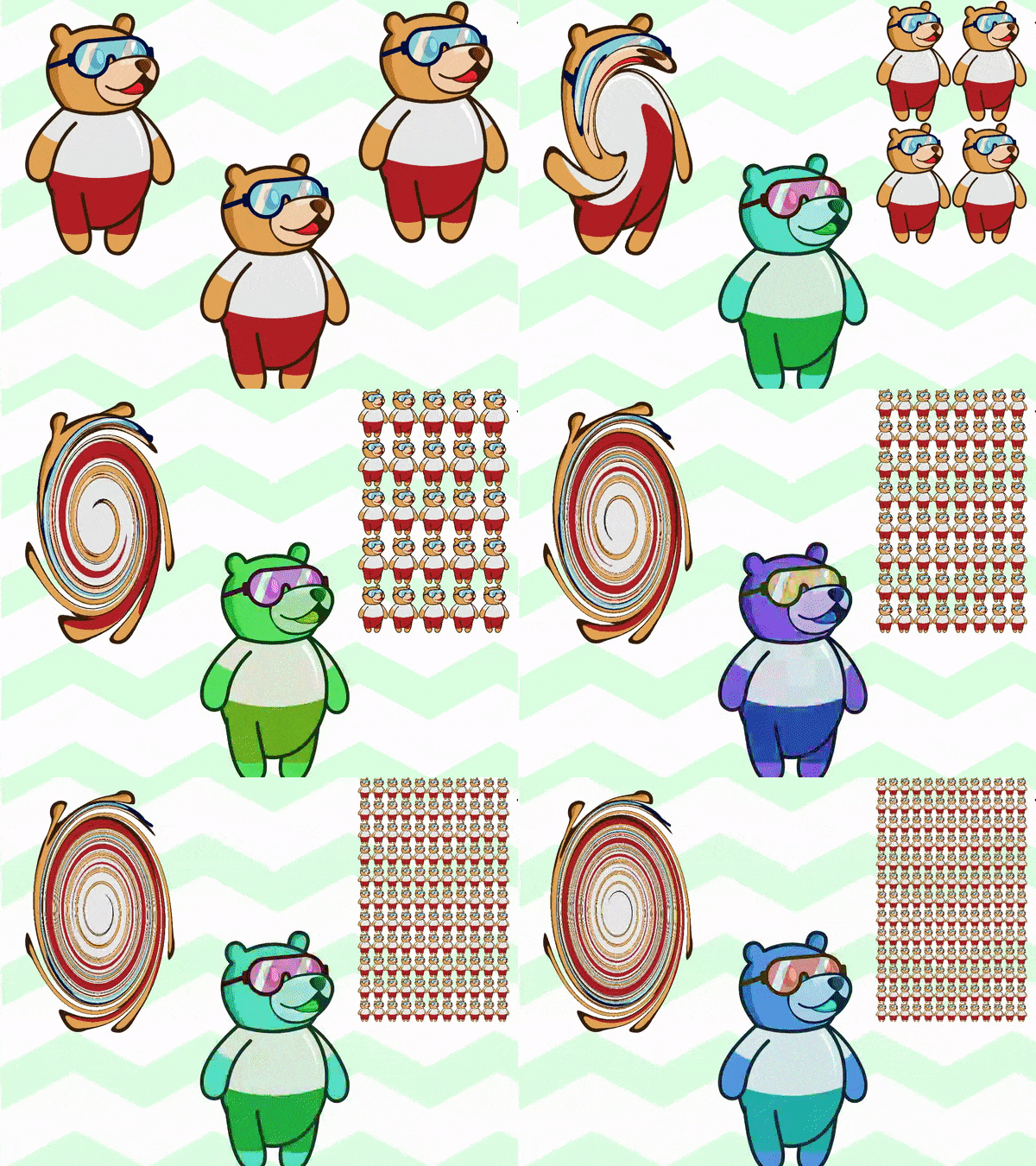
Save your program
Let us save the project with the file name ‘Tobi Graphics’.