

Lesson 1,
Topic 1
In Progress
Activity: Interaction between sprites
John is planning to learn to code. John’s friend Hazel goes to a coding class. So, he decided to ask Hazel about the coding classes. Let’s see how John and Hazel greet themselves with the help of the say block from the Looks palette.
Step-by-step
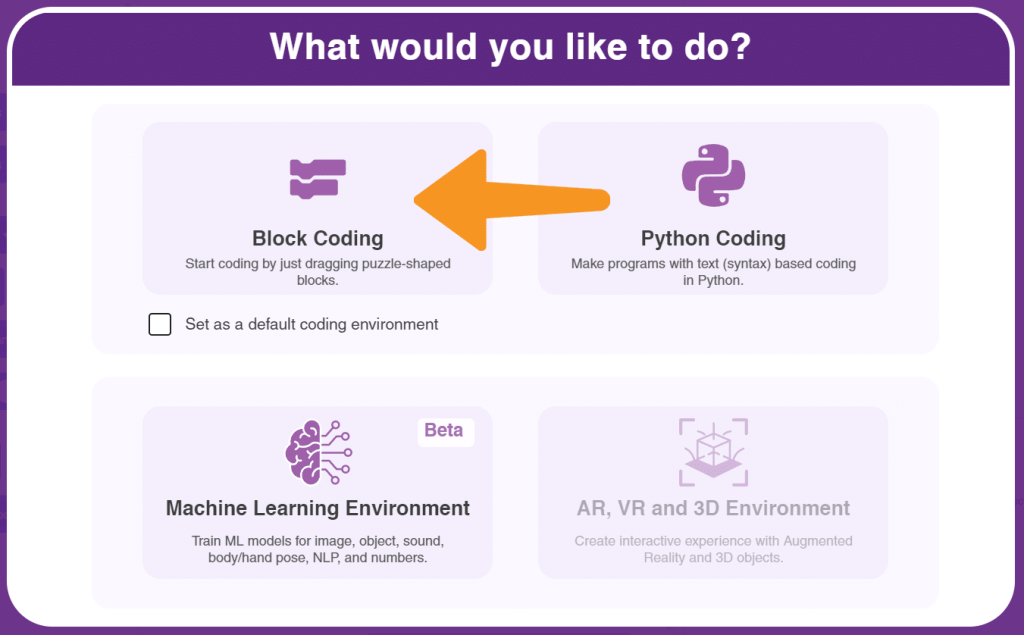
- Open the PictoBlox and select the coding environment as ‘Block Coding as shown.
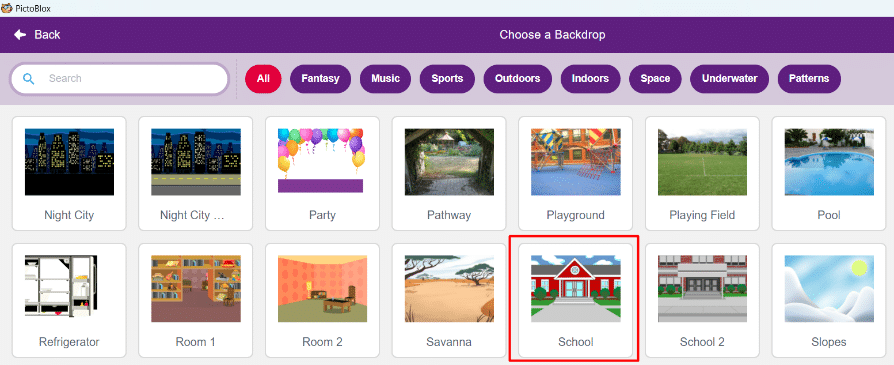
- We are going to make the John and Hazel to discuss in their school. Let us add the ‘School ‘as the backdrop.
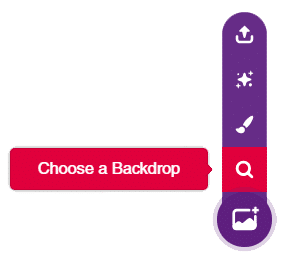
- We will now, click on the ‘Choose a backdrop option and select the backdrop ‘School’ as shown below.
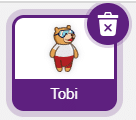
- In our project, we are not going to use the ‘Tobi’. Let us delete the ‘Tobi’ sprite by clicking on the Dustbin icon.
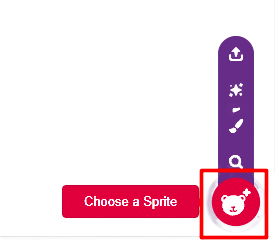
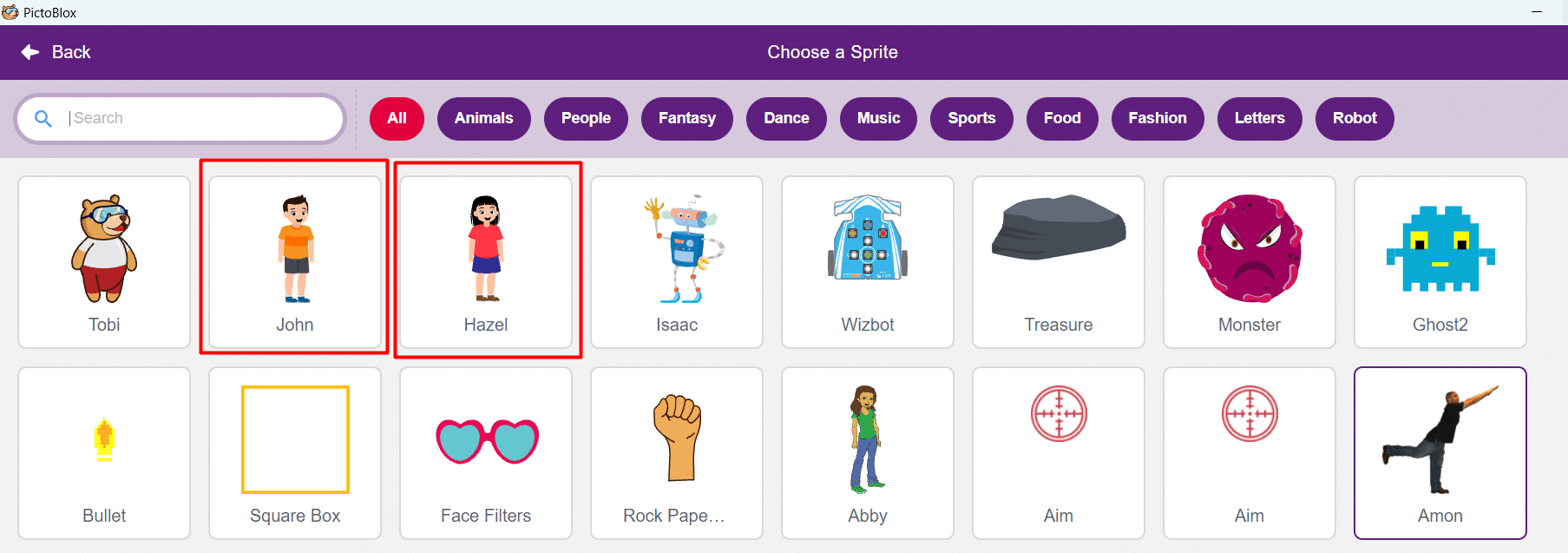
- Now, it’s time to add the sprites, we have to add two sprites ‘Hazel’ and ‘John’. Click on Choose a Sprite option and select the ‘John’ sprite. Similarly, add the ‘Hazel’ sprite.
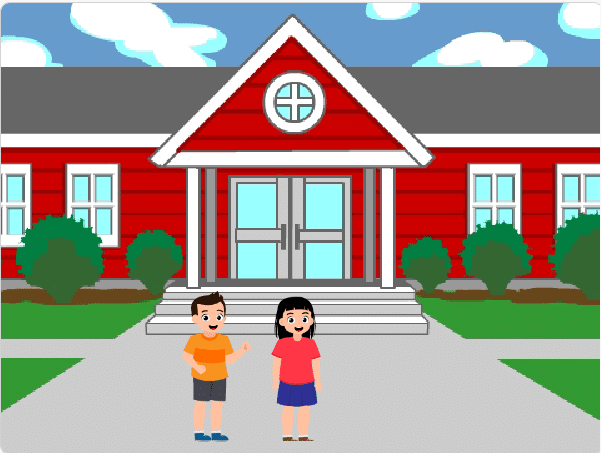
- The final look of the stage after adding the sprites and the backdrop looks as shown below.
- It’s time to code the ‘John’. Open the Looks palette drag and drop the two say() for () seconds block and connect one below the other as shown. Don’t forget to add the When flag clicked.
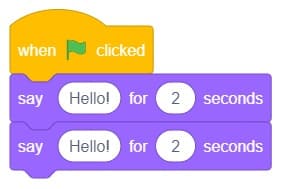
- Replace the ‘hello’ in the first say block with the ‘Hai’ as shown.
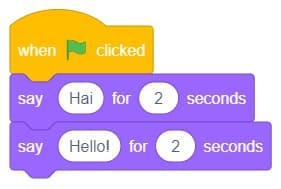
- Replace the ‘hello’ in the second block with the How, are you?
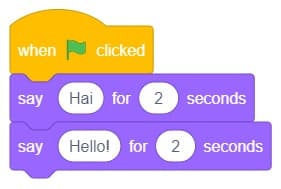
- We are done with the ‘John’ Let us move to the next sprite ‘Hazel’. Open the Looks palette drag and drop the two say block and connect one below the other as shown. Don’t forget to add the When flag clicked.
- Let the first say block be as it is as ‘Hello’.
- Replace the ‘hello’ in the second block with the I am fine.
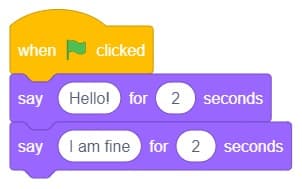
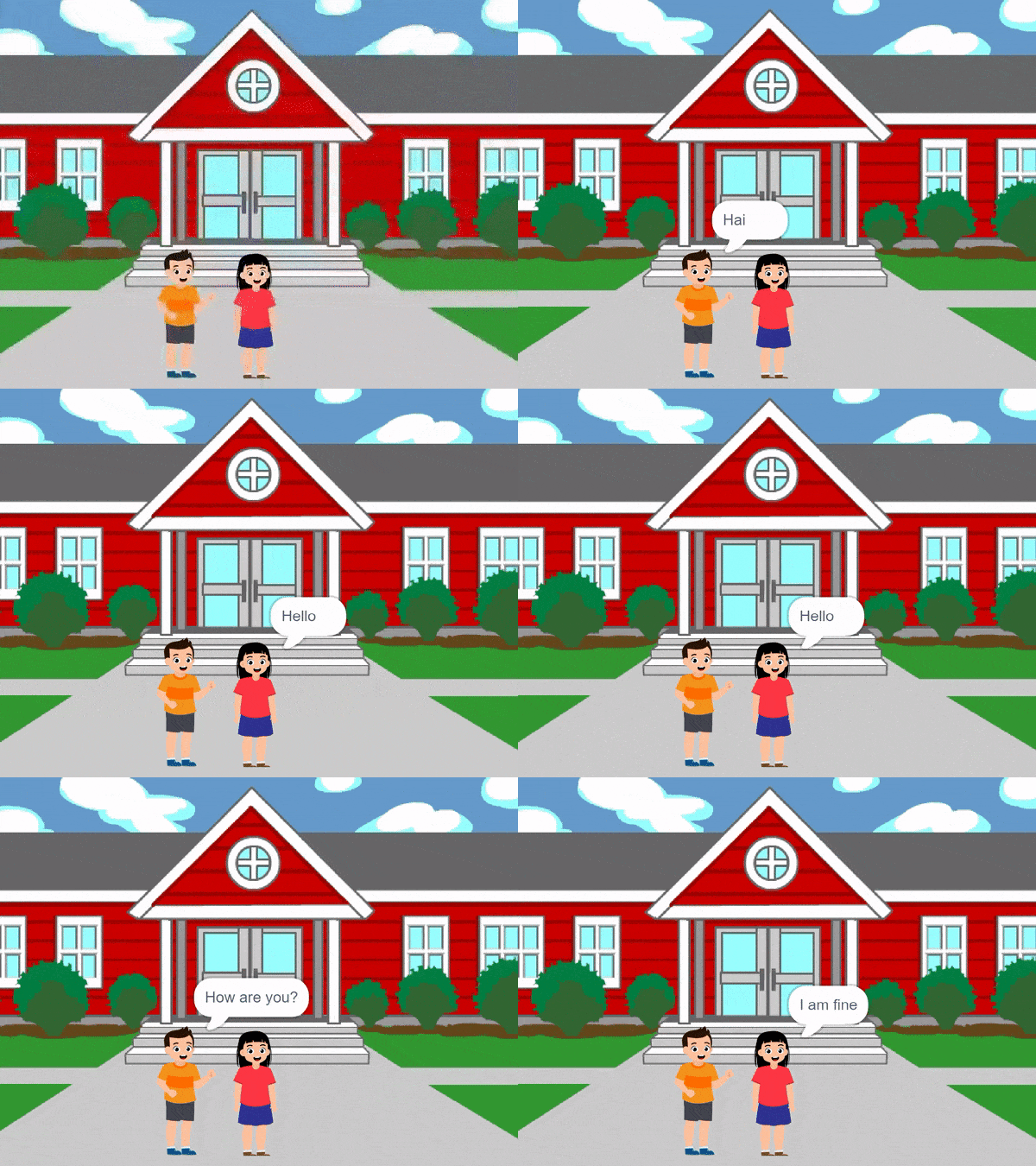
- Time to check. Run and start the code when the flag is clicked.
- Oh! No, both John and Hazel are speaking at the same time. Let us add the wait block for both of the sprites.
- Select the ‘John’ sprite and code as shown below.
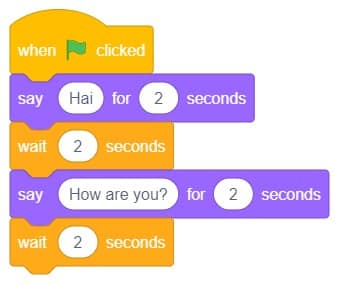
- Select the ‘Hazel’ sprite and code as shown below.
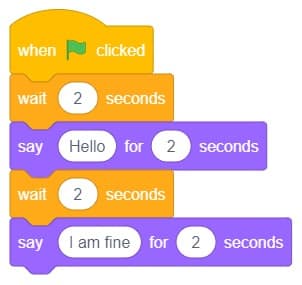
- Run and test the code by clicking on the ‘Flag clicked’.
Output
Save your program
Let us save the project with the file name ‘Interaction between sprites.