

Lesson 1,
Topic 1
In Progress
Activity: City Tour
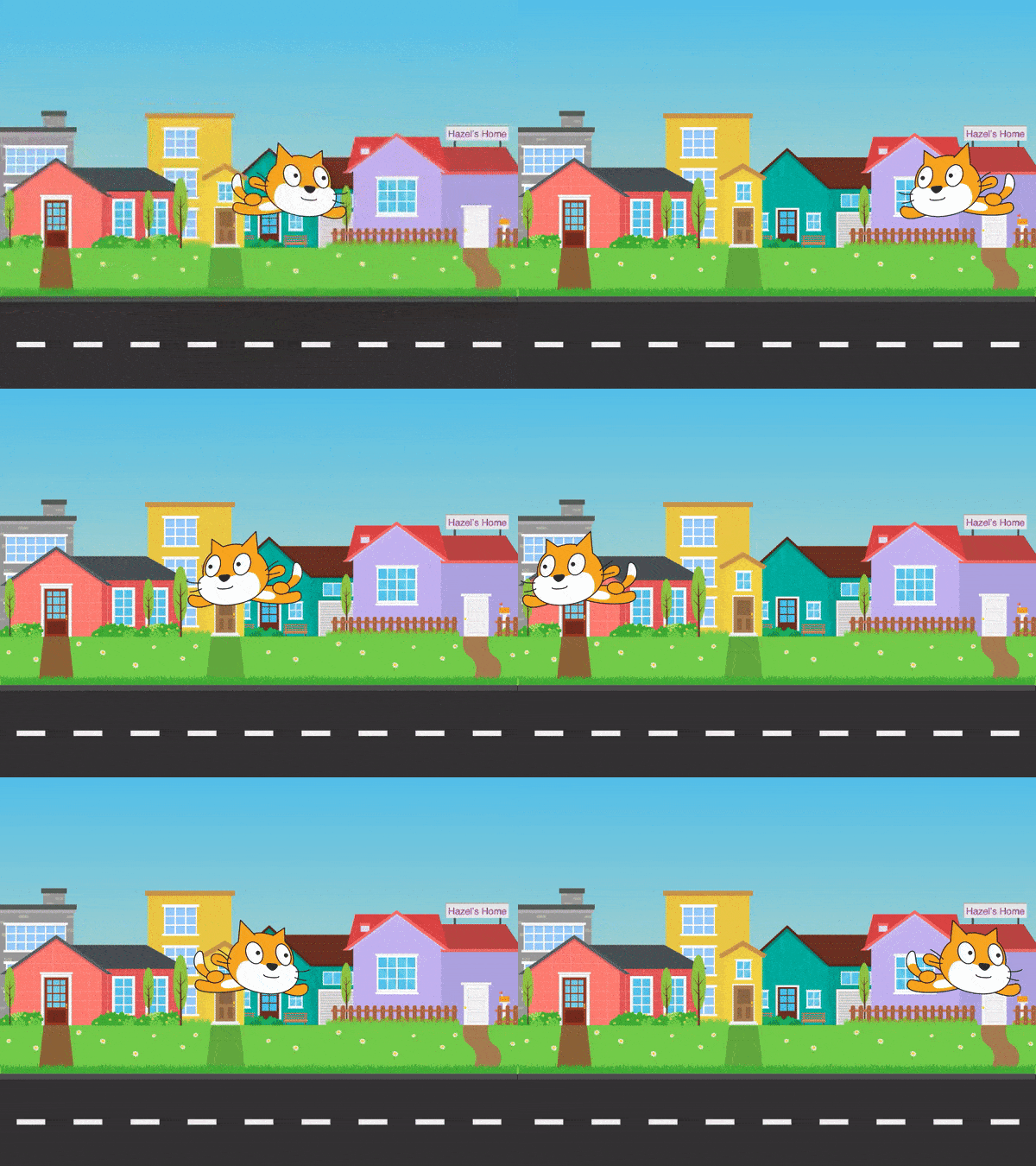
Once upon a time, there was a cat that dared to dream of flying in the sky by spreading its arms wide. But, it was afraid of doing the same. So, it decided to go for training classes and fulfill its dream. After six months of its training. Finally, it started slowly to fly in the sky by spreading its arm widely. Are you excited to see how the cat might be flying in the sky? Sure, Let us create the cat flying action by using PictoBlox.
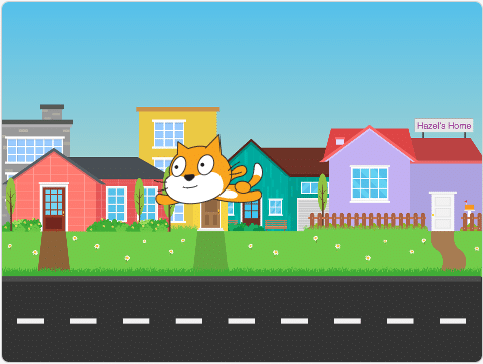
Let us follow the steps given below to create a ‘cat flying’ scene in the PictoBlox.
Step-by-step
- Open the PictoBlox and select the coding environment as Block coding as shown.
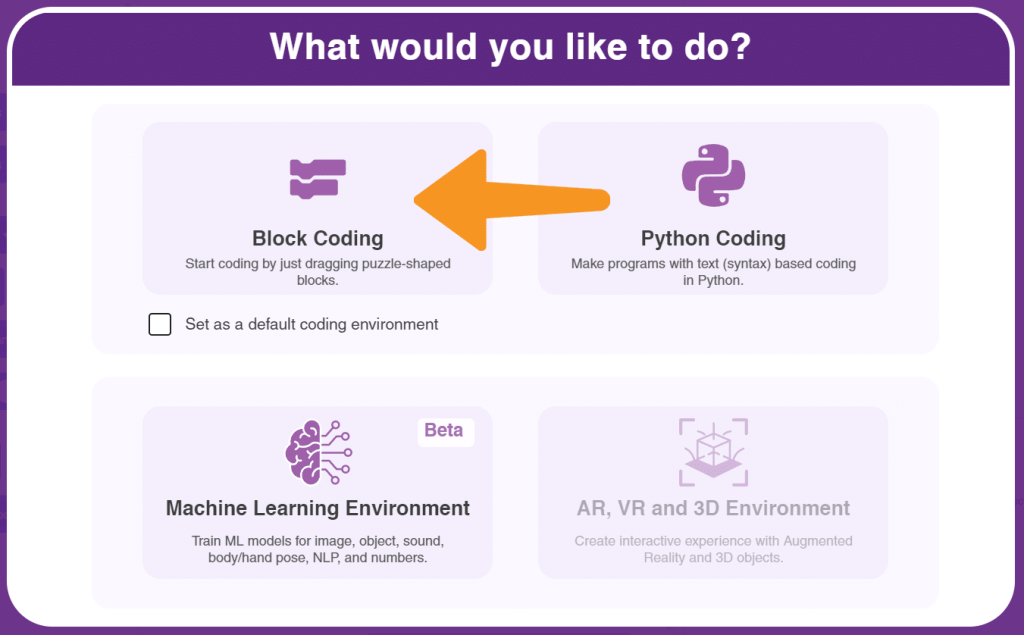
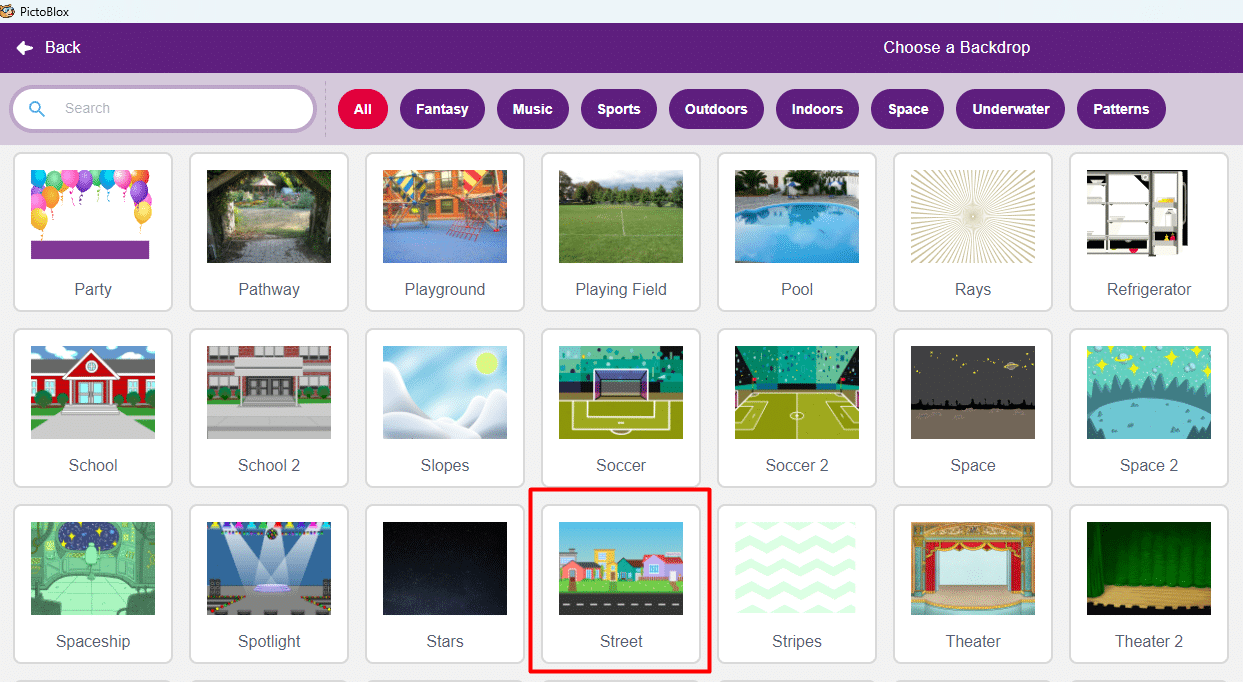
- We are going to help ‘Cat’ to visit ‘Earth’. First, we have to choose the ‘Street’ as our backdrop.
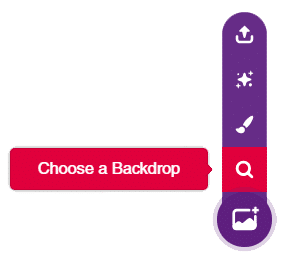
- We will now, click on the ‘Choose a backdrop’ option and select the backdrop ‘Street’ as shown below.
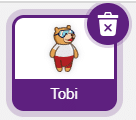
- In our project, we are not going to use the ‘Tobi’ sprite let us delete the ‘Tobi’ sprite by clicking on the Dustbin icon.
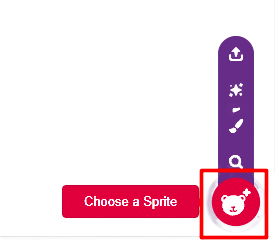
- Now, we have to add our ‘Cat’ sprite in the ‘Street’ by using the choose a sprite option as shown below.
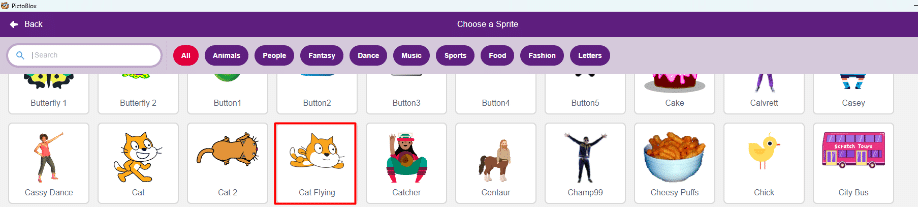
- The stage looks as shown below. It’s time to make our cat fly by doing code.
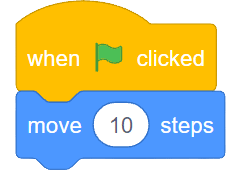
- Select the sprite ‘cat flying’. open the Motion palette and drag and drop the move (10) steps block in the script area. This block will make our sprite move. In our project, the value is ‘10’. It means the cat will fly 10 steps forward.
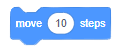
- Click the block Move 10 steps and check whether the cat is flying 10 steps forward or not.
- Now, let us make the sprite ‘Cat flying’ move by using the ‘Green flag’ clicked to run and test the code in the full screen.
- Open the Events palette and drag and drop the when flag clicked block into the scripting area and connect it at the top of the move 10 steps block. Then, connect the when the flag is clicked block. It is used to start a script. You can run the script by clicking on the green flag above the stage.
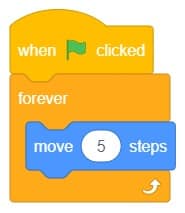
- Now, let us make the cat fly continuously by using the ‘Forever’ block from the control palette.
- Next, open the Control palette and drag and drop the forever block below the when flag clicked block. This block is used when you want a set of blocks to keep running until the script is stopped manually.
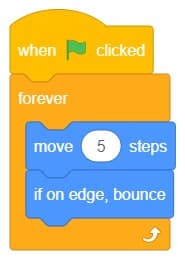
- The cat gets stuck up at the end of the stage. We have to make them bounce back. open the Motion palette and drag and drop the if on edge bounce block in the script area. This block will make our sprite bounce back.
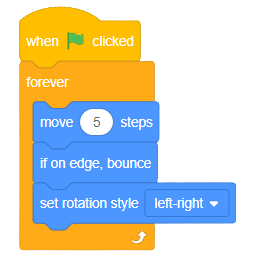
- Oh! My god cat is upside down. Let us correct it by adding the ‘set rotation style block’ down to block.
- Ready to test my code. Click on the Green flag and check.
Output
Save your program
Let us save the project with the file name ‘City Tour’.