

Lesson 1,
Topic 1
In Progress
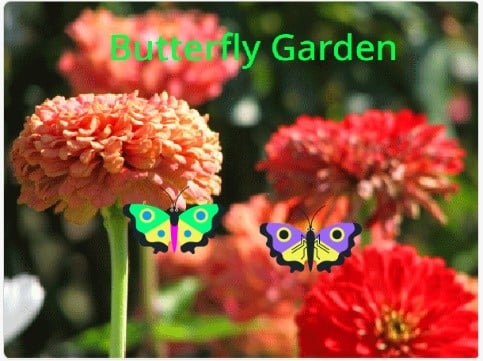
Activity: Butterfly Garden
Despite the winter chill, John visited the butterfly garden, where he was amazed to find vibrant butterflies fluttering amidst the snowy landscape, bringing warmth and color to his day. After reaching his home he decided to create his own butterfly garden by using the PictoBlox.
Step-by-step
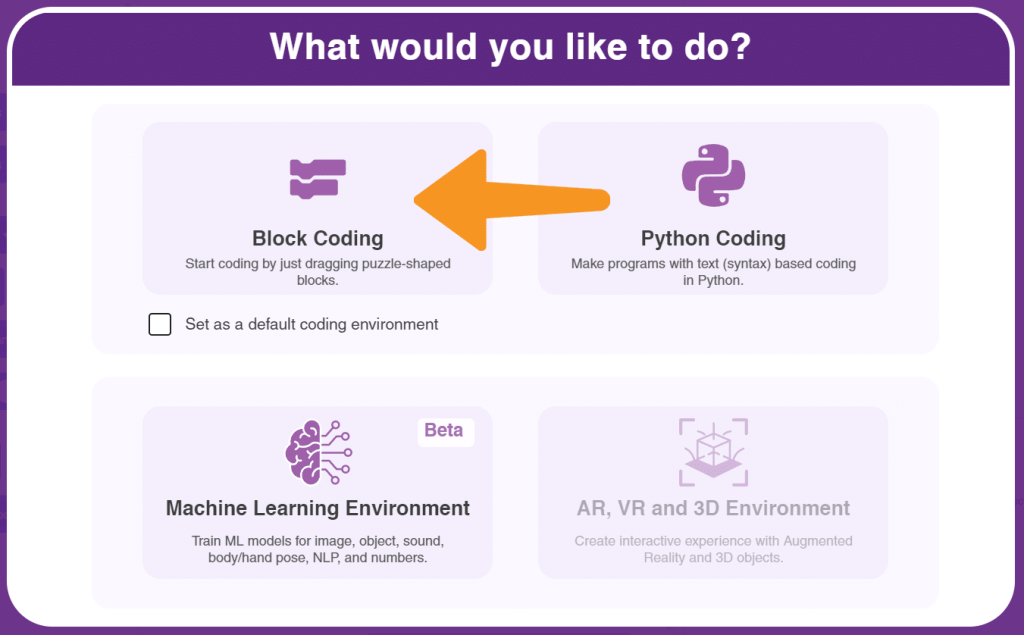
- Open the PictoBlox and select the coding environment as ‘Block Coding as shown.
- We are going to paint the butterflies colorful which brings colors to our day and make them fly in the garden.
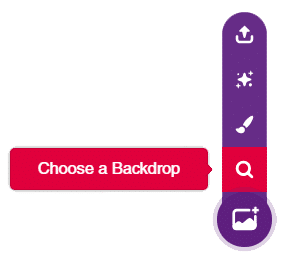
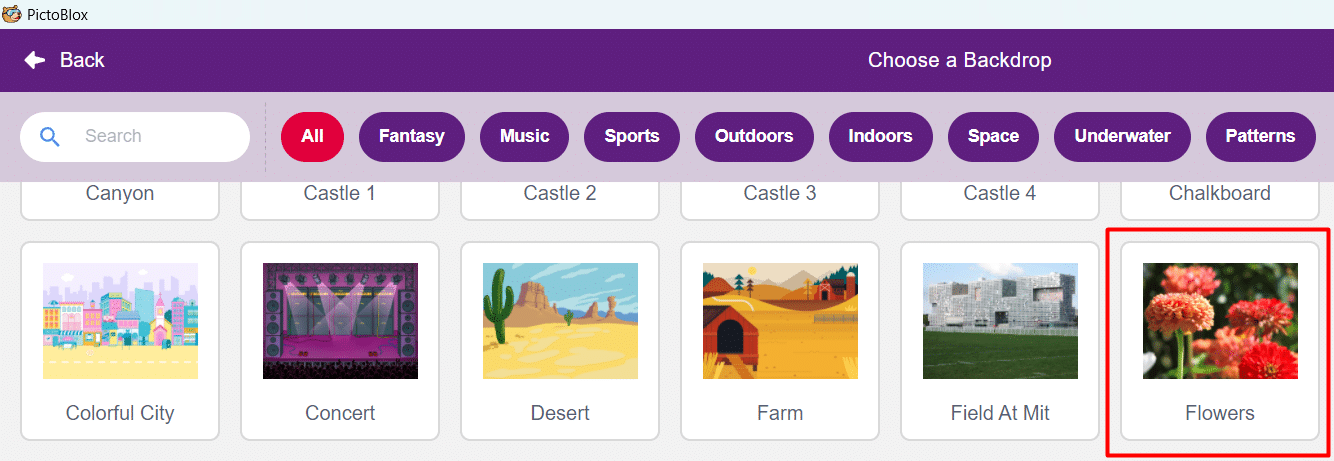
- We will now, click on the ‘Choose a backdrop option and select the backdrop ‘Flowers’ as shown below.
- In our project, we are not going to use the ‘Tobi’. Let us delete the ‘Tobi’ sprite by clicking on the Dustbin icon.
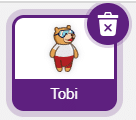
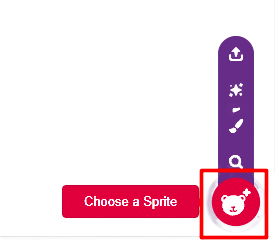
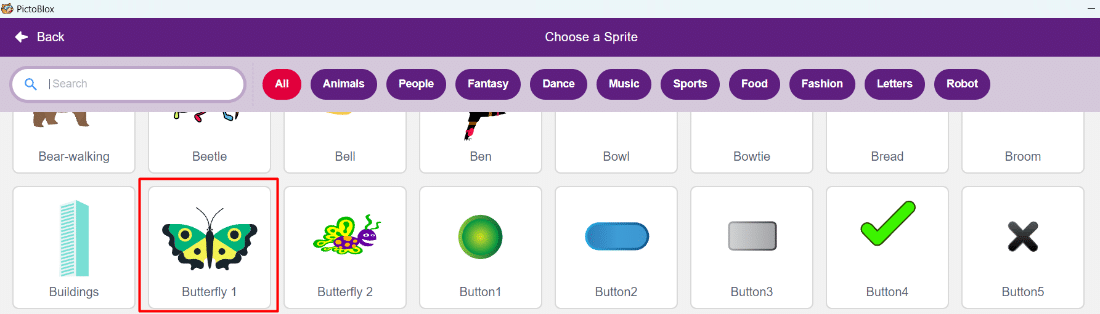
- Now, we have to add our ‘Butterfly’ sprite in the ‘Flower’s backdrop by using the choose a sprite option as shown below.
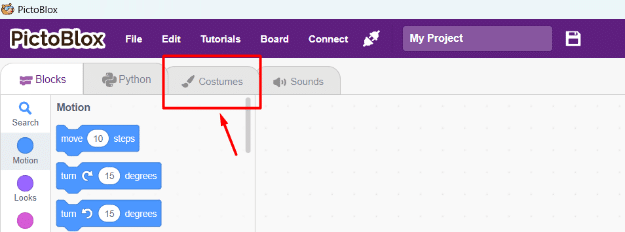
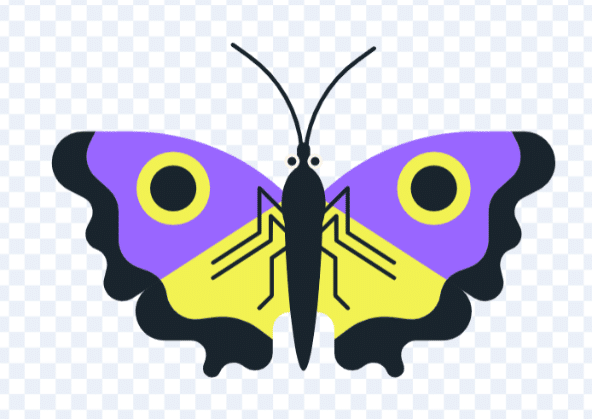
- Click on the costume tab on the left side. It directs you to the paint editor tool. select the color by using the ‘Fill’ color option and change the color of the “Butterfly” by using the ‘Fill’ tool as shown below. Note: Students can choose the color they want for their butterfly.
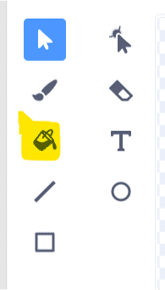
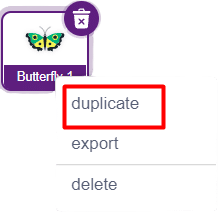
- Right-click on the sprite and duplicate the sprite. Repeat the same for the duplicated butterfly sprite. Click on the costume option on the left side. It directs you to the paint editor tool. select the color by using the ‘Fill’ color option and change the color of the “Butterfly” by using the ‘Fill’ tool as shown below.
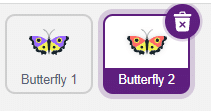
- The final look of the stage after adding the sprites and the backdrops looks as shown below.
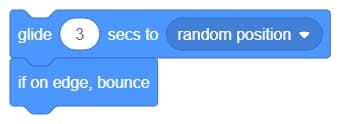
- It’s time to code the ‘Butterfly’ sprite. Click on the butterfly sprite. Let us make our butterfly move steadily to a random position on the stage. Can you guess the block that helps us to move steadily? Yes, Glide to a random position.
Note: Increase or decrease the glide ‘1’ sec to () speed up or down the movement of the butterfly.

- Oh! My butterfly got stuck at the edge of the stage. Let me fix it by using the ‘if on edge bounce’ block down to the glide block. Let me also make it move continuously by using the ‘Forever’ block.
- Let us add the ‘Set rotation style‘ block down to the ‘if on edge bounce block’. Finally, let me have the hat block ‘When Green flag is clicked’ to test my code.
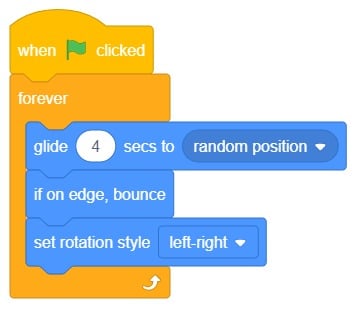
- Repeat the same for the other butterfly sprite.
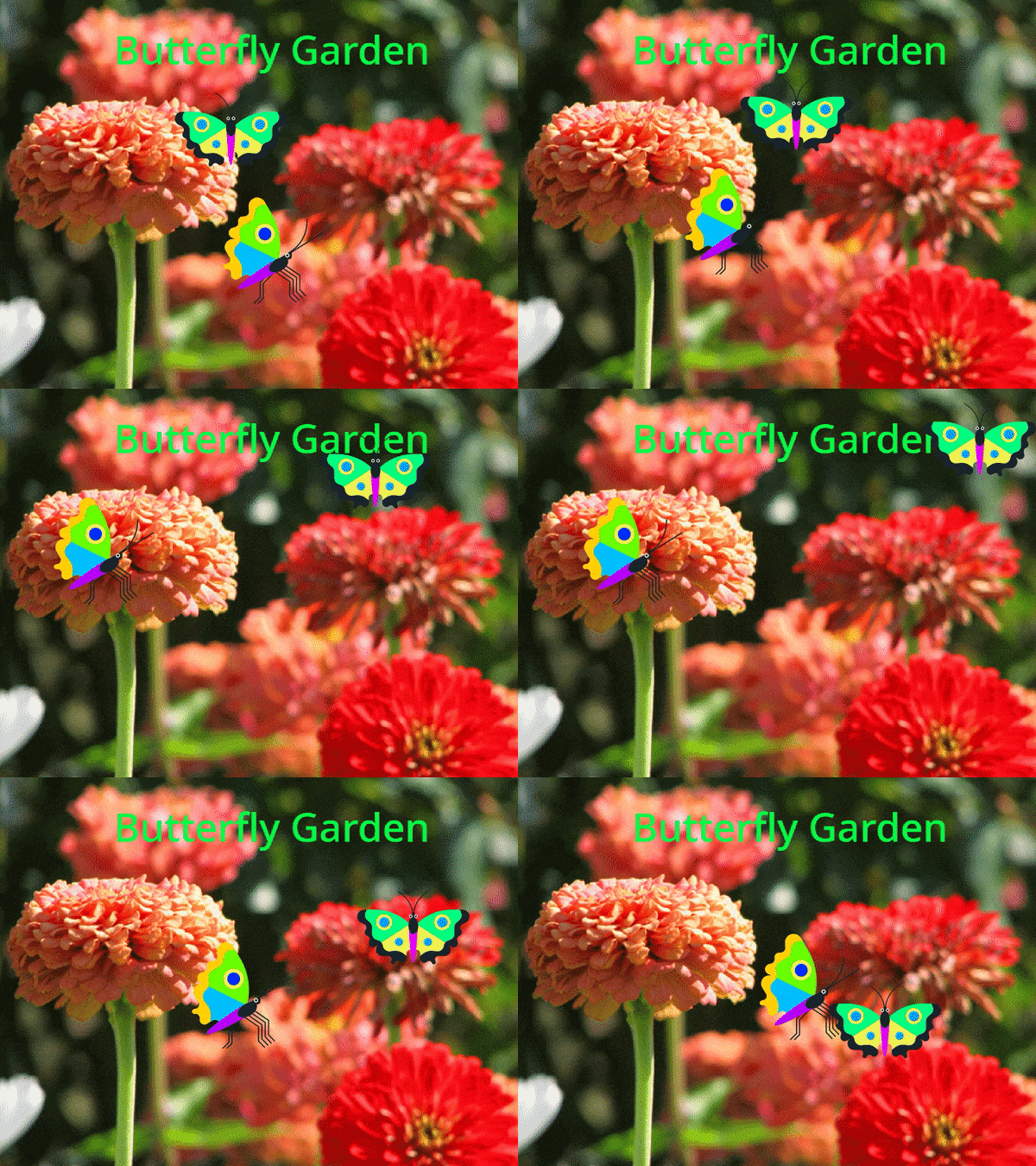
- Time to see the colorful butterflies flying in my garden by clicking on the ‘Green flag.
- Run and test the code
Output
Save your program
Let us save the project with the file name ‘Butterfly Garden’.