

Lesson 1,
Topic 1
In Progress
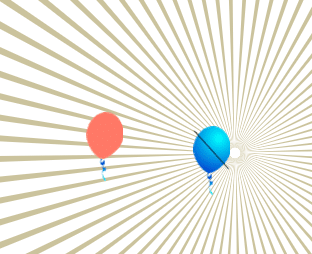
Activity: Pop the balloon
John, an enthusiast of simple pleasures, found immense satisfaction in blowing up soap balloons and bursting them with his own hands. Motivated by his love for this activity, he made the decision to create a pop-the-balloon game using PictoBlox software, allowing himself to relish the same enjoyment of popping balloons in a virtual realm.
Step-by-step Procedure
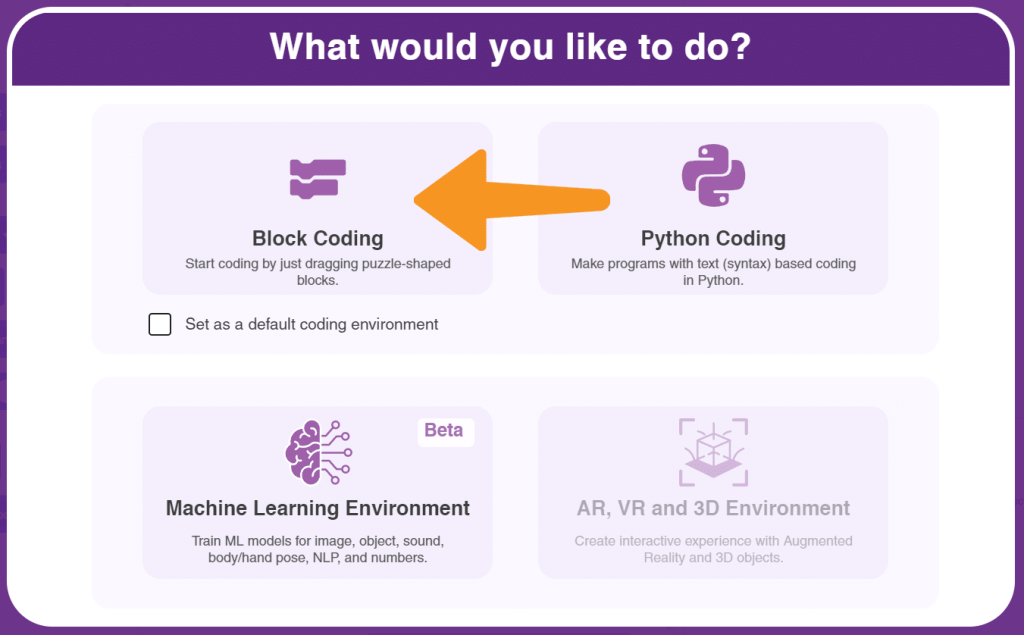
- Open a new file in the PictoBlox and select the coding environment as Block coding as shown.
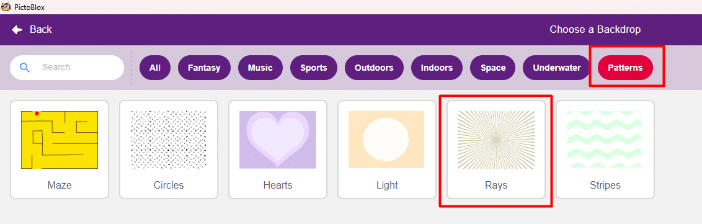
- We are going to create the Pop the balloon Firstly, we need to select the Rays as the backdrop in which the Balloon1 sprite will be added.
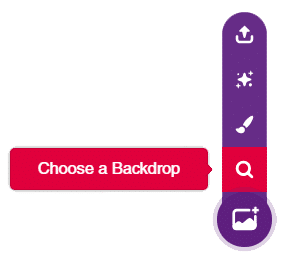
- We will now, click on the ‘Choose a backdrop’ option and select the Patterns category and select the Rays as the backdrop as shown.
- In our project, we are not going to use the Let us delete the Tobi sprite by clicking on the Dustbin icon.
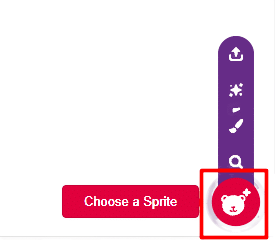
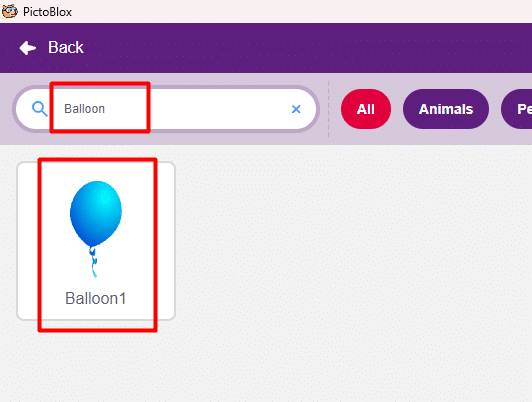
- Now, we have to add our sprite Balloon1 in the Rays Click on Choose a Sprite option and type Balloon in the search bar and select the Balloon1 sprite.
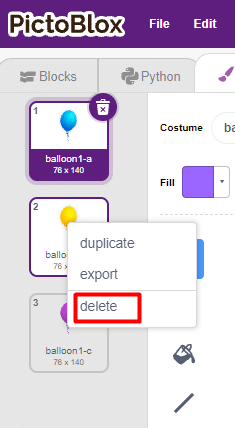
- Select the Costumes tab on the left side of the screen. Let us delete the balloon1-b sprites by right click on costume and select the delete Similarly, delete the balloon1-c sprite.
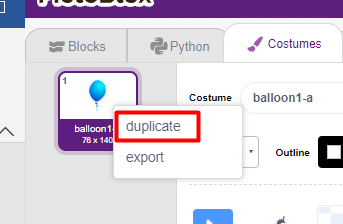
- Right click on the balloon1-a sprite and select the duplicate option, balloon1-a2 sprite will be formed.
- Let us rename the balloon1-a costume as normal and balloon1-a2 costume as pop.
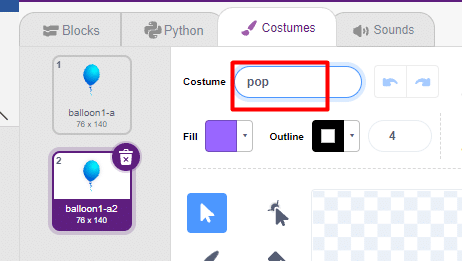
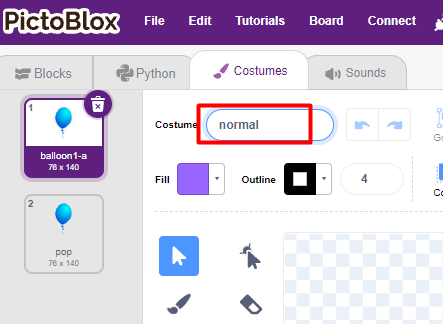
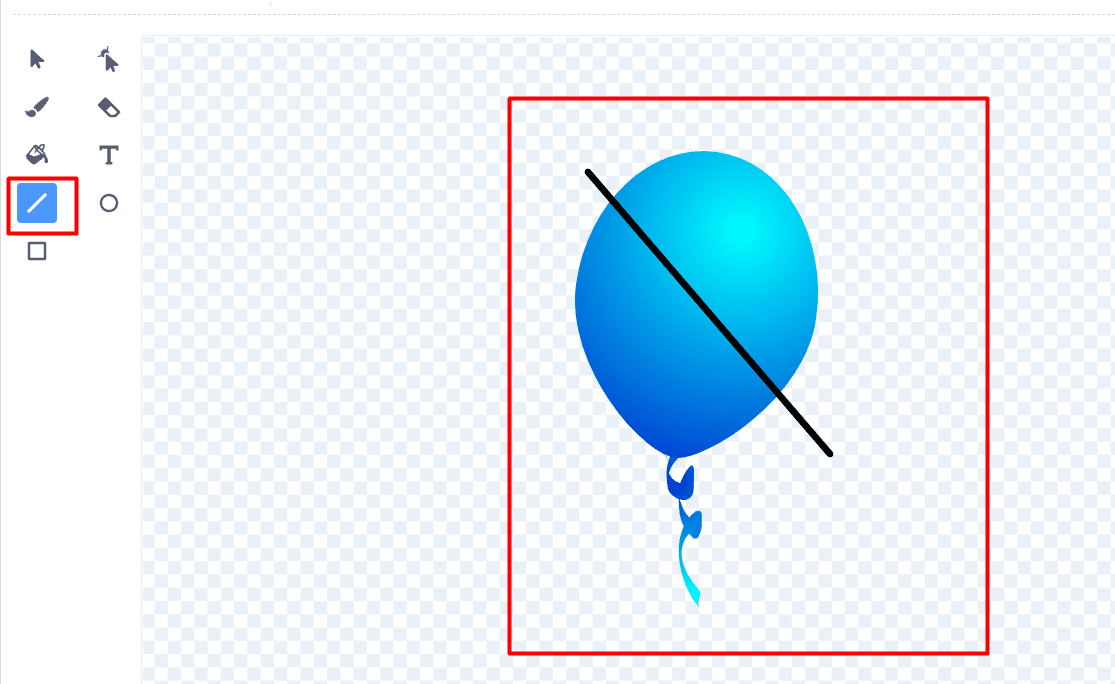
- Let us draw the cross lines on top of the pop costume sprite. Select the ‘Line’ tool and draw the cross line on top of the balloon.
- It’s time to code the Balloon1
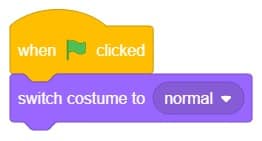
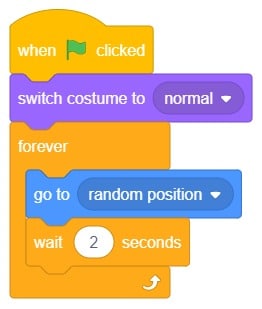
- Let us fix the costume normal by using the switch costume to (normal) block from the Looks palette.
- Time to make the Balloon1 sprite to move randomly on the stage by using the go to (random position) block from the Motion palette.
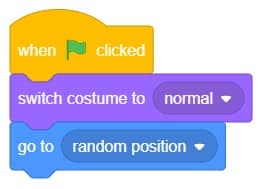
- But it is moving very fast. Let us make it to move slowly by using the wait (1) seconds block from the Control Change the value of wait (1) seconds as 2. Time to make them move continuously by using the forever block from the Control palette.
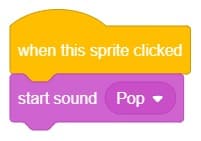
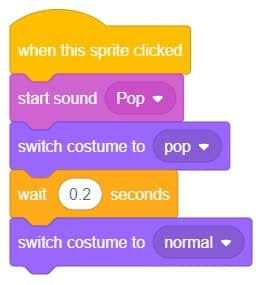
- Let us pop the Balloon1 sprite when the sprite is clicked by adding when this sprite clicked block from the Events palette. Once it is clicked it produce sound. Le us add start sound (pop) block from the Sound palette and also the costume of the Balloon1 sprite will change to pop. Let us add the switch costume to (pop) block from the Looks Change the costume to pop by clicking on the inverted triangle.
- We have to make the costume to change back into normal costume after some time so user can play the game and enjoy it.
- Let us add wait (1) seconds block from the Control palette and change the value to 2 and let us add the switch costume to (normal) block from the Looks palette to bring back the pop balloon to the normal sprite.
- Right click on the Balloon1 sprite on the sprite panel and select the duplicate Balloon2 sprite will be appear on the stage and in the sprite panel as well.
- Let us change the color of the Balloon2 sprite by clicking on the Costumes tab on the left side of the screen and select the color in the Fill option and fill the color in the Balloon2 sprite by using Fill tool. Note: Change the color for both the normal and pop costumes.
- Time to run and check the code. Click on the Green flag.
Output
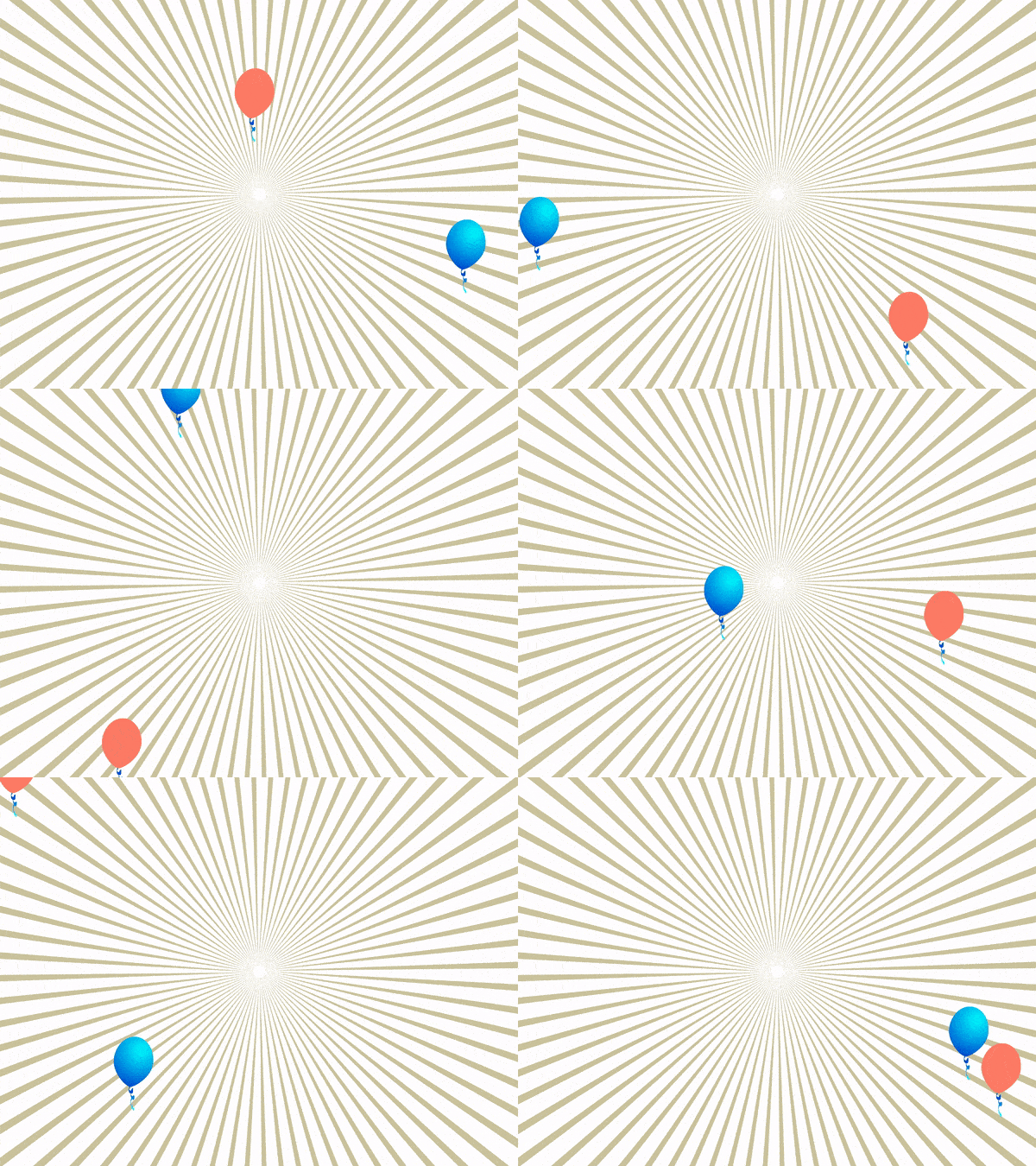
Save your program
Let us save the project with the file name ‘Pop the Balloon’.